
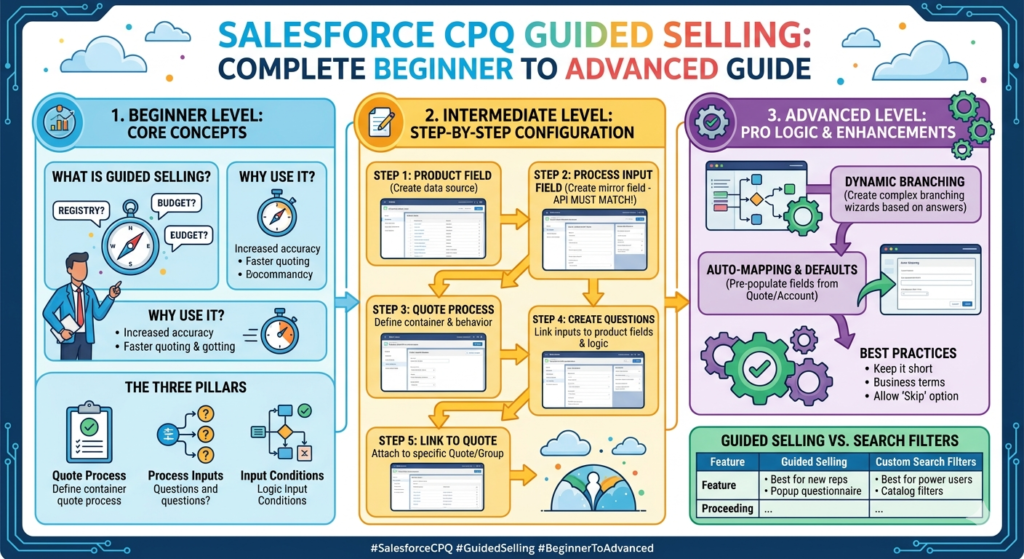
In today’s competitive sales environment, customers expect quick, accurate, and personalized product recommendations. Sales teams cannot afford to waste time figuring out what to sell or how to configure complex products.
This is where Salesforce CPQ Guided Selling plays an important role. It helps sales reps ask the right questions and automatically suggests the best products based on customer needs.
What is Salesforce CPQ Guided Selling?
Guided Selling is a feature in Salesforce CPQ that helps sales users choose the right products by answering a set of predefined questions.
Instead of manually browsing through product catalogs, sales reps simply answer questions like:
- What type of customer is this?
- What is their requirement?
- What is their budget?
Based on the answers, CPQ automatically filters and recommends relevant products.
In simple terms, Guided Selling acts like a smart assistant for sales teams.
Why Guided Selling is Important
Without Guided Selling:
- Sales reps may select wrong products
- Configuration errors may happen
- Sales cycle becomes slow
With Guided Selling:
- Product selection becomes faster
- Errors are reduced
- Sales experience improves
It is especially useful for businesses dealing with:
- Complex product bundles
- Multiple pricing options
- Large product catalogs
Key Features of Guided Selling
1. Question-Based Flow
Sales reps answer simple questions instead of searching manually.
2. Dynamic Product Filtering
Products are filtered automatically based on responses.
3. Improved Accuracy
Only relevant products are shown, reducing mistakes.
4. Faster Quote Creation
Sales reps can generate quotes quickly.
5. Better Customer Experience
Customers receive accurate and personalized solutions.
How Guided Selling Works
Let’s understand the flow step by step.
- Sales rep starts creating a quote
- Clicks on “Guided Selling”
- System asks predefined questions
- User selects answers
- CPQ filters products based on conditions
- Recommended products are displayed
This makes the entire process simple and efficient.
Step-by-Step Guide to Set Up Guided Selling
Now let’s see how to configure Guided Selling in Salesforce CPQ.
Step 1: Enable Guided Selling
- Go to Installed Packages
- Open Salesforce CPQ package settings
- Enable Guided Selling
This activates the feature in your org.
Step 2: Create Product Fields
You need fields on the Product object to store filtering criteria.
Examples:
- Industry
- Product Type
- Subscription Type
These fields will be used in filtering logic.
Step 3: Create a Search Filter
Search Filters control which fields appear during Guided Selling.
Steps:
- Go to Search Filters in CPQ
- Create new filter
- Select object: Product
- Choose fields to display
This defines what users will see while selecting products.
Step 4: Create Configuration Attributes
Configuration Attributes allow capturing user input.
Examples:
- Number of users
- Required features
- Budget
These inputs help in product filtering.
Step 5: Create Product Rules
Product Rules define logic for filtering products.
Types of rules:
- Selection Rules
- Validation Rules
- Alert Rules
For Guided Selling, selection rules are mostly used.
Example:
- If customer type = Enterprise → show premium products
Step 6: Use Price Rules (Optional)
Price Rules can dynamically adjust pricing based on inputs.
Example:
- Apply discount for bulk quantity
- Increase price for premium features
Step 7: Create Guided Selling Questions
This is the most important step.
Steps:
- Go to Guided Selling setup
- Create questions
- Define answer options
Example:
Question: What type of solution do you need?
Options:
- Basic
- Advanced
- Premium
Step 8: Map Questions to Product Filters
Now link the answers with product fields.
Example:
- If answer = Premium → show premium products
This is how filtering logic works.
Step 9: Test the Setup
- Create a quote
- Launch Guided Selling
- Answer questions
- Verify product recommendations
Testing ensures everything works correctly.
Real-Life Example
Imagine a company selling software subscriptions.
Without Guided Selling:
- Sales rep manually searches products
- High chance of mistakes
With Guided Selling:
- Questions asked:
- Company size
- Budget
- Required features
- System suggests:
- Basic plan for small business
- Premium plan for enterprise
This improves both speed and accuracy.
Best Practices for Guided Selling
- Keep questions simple and relevant
- Avoid too many questions
- Use clear answer options
- Regularly update product rules
- Test with real business scenarios
Common Mistakes to Avoid
- Overcomplicating the question flow
- Not aligning questions with business logic
- Ignoring testing
- Using too many filters
Keeping the setup simple is the key to success.
Benefits of Salesforce CPQ Guided Selling
Faster Sales Process
Sales reps can quickly identify the right products.
Reduced Errors
Automation minimizes manual mistakes.
Improved Productivity
Sales teams focus more on selling, less on searching.
Better Customer Satisfaction
Customers get accurate recommendations.
Scalable Sales Model
Works well even with large product catalogs.
Final Thoughts
Salesforce CPQ Guided Selling is a powerful feature that simplifies product selection and improves the overall sales process.
By asking the right questions and automating product recommendations, it helps businesses close deals faster and more accurately.
If you are working with CPQ or planning to implement it, Guided Selling is a must-have feature. Start with a simple setup, test it thoroughly, and gradually enhance it based on business needs.
A well-designed Guided Selling process can completely transform how your sales team works and how customers experience your products.