
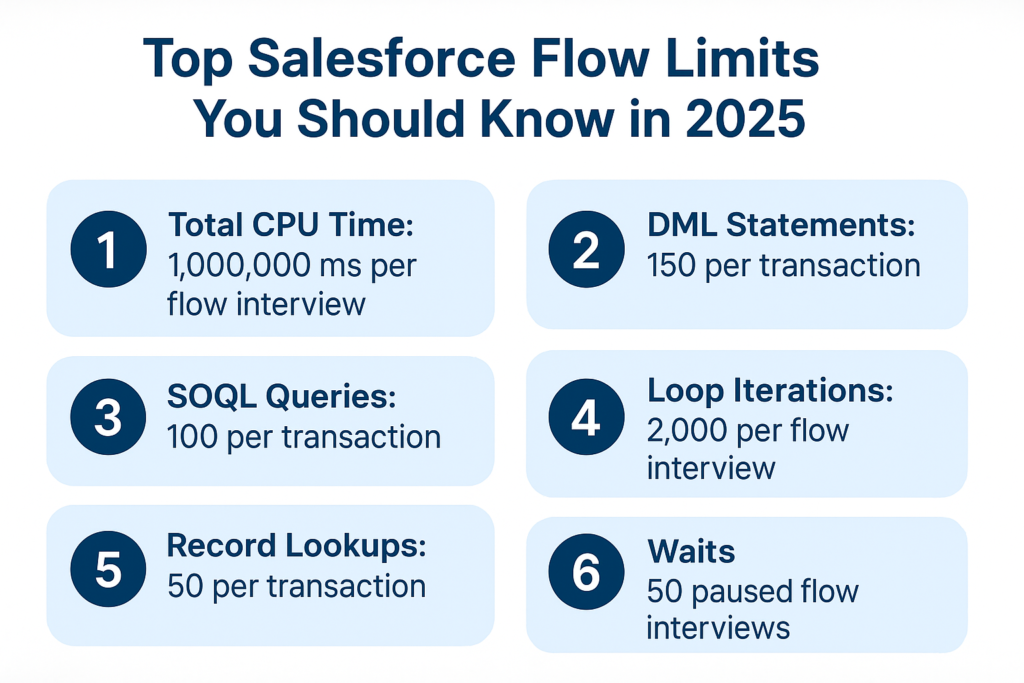
Top Salesforce Flow Limits You Should Know in 2025
Introduction
Salesforce Flow has become the backbone of declarative automation — empowering Admins and Developers alike to automate complex business processes without writing a single line of code.
But with great power comes great responsibility — and limits.
Just like Apex and SOQL have governor limits to ensure efficient multi-tenant performance, Flows also have strict execution limits that can make or break your automation if ignored.
In this blog, let’s explore the top Salesforce Flow limits, why they exist, and how you can design your automations to stay well within them.
1. What Are Salesforce Flow Limits?
Salesforce Flow limits define the maximum number of elements, queries, DML operations, and actions a Flow can execute in a single transaction.
They exist to protect the Salesforce platform from performance degradation and ensure that one user’s automation doesn’t consume excessive shared resources.
There are three main categories of Flow limits:
-
Flow-specific limits – Unique to the Flow engine (e.g., element execution, version limits).
-
Per-transaction limits – Shared with Apex transactions (e.g., SOQL, DML, CPU time).
-
Per-hour or org-wide limits – Related to the total number of flow interviews, pauses, and scheduled actions allowed within a time frame.
2. Flow-Specific Limits
These are limits applied directly to the Flow runtime engine itself.
| Limit Type | Description | Limit Value |
|---|---|---|
| Executed Elements per Flow Interview | The total number of Flow elements (Get, Update, Assignment, Loop, etc.) that can run during one execution. | 2,000 elements |
| Active Versions per Flow | Each Flow can have multiple versions, but only one can be active at a time. | 50 versions |
| Active Flows per Flow Type | For some Salesforce editions (e.g., Essentials, Professional), you can only have a few active Flows per type. | Up to 5 per type |
| Paused/Waiting Interviews | Flows that include Wait elements or Pauses can accumulate in org storage. | Limit varies by edition |
| Flow Interviews per Hour | Number of interviews (executions) per hour. | 1,000 per hour (approx.) |
💡 Best Practice: Regularly clean up paused or old Flow interviews. These can consume org storage and impact performance.
3. Per-Transaction Limits (Shared with Apex)
Every record-triggered or autolaunched Flow runs within a Salesforce transaction context, which means Apex governor limits apply.
| Limit Type | Description | Limit Value |
|---|---|---|
| SOQL Queries per Transaction | Number of “Get Records” elements that translate into SOQL queries. | 100 |
| DML Statements per Transaction | Number of “Create/Update/Delete Records” elements executed. | 150 |
| Records Retrieved by SOQL | Maximum total number of records retrieved. | 50,000 |
| Records Processed by DML | Total records that can be inserted, updated, or deleted. | 10,000 |
| CPU Time Limit | Maximum CPU time Salesforce allows for one synchronous transaction. | 10,000 ms (10 seconds) |
⚠️ Why It Matters:
Flows often fail when logic-heavy processes exceed CPU time. For example, looping over records and performing a “Get Records” inside that loop can quickly exceed limits.
4. Common Causes of Flow Limit Errors
-
Data Elements Inside Loops: Running Get or Update elements within loops causes multiple SOQL or DML statements per iteration.
-
Unoptimized Record Queries: Using broad filters or “All Records” retrievals in Get Records.
-
Multiple Subflows: Calling several subflows within a parent Flow can multiply element counts.
-
Complex Decision Trees: Each branch and condition counts toward executed elements.
-
Heavy Record-Triggered Flows: Especially on objects with large data volume or concurrent updates.
5. How to Avoid Flow Limits
✅ 1. Move DML & Get Records Outside Loops
Always store queried records in a collection variable before entering a loop. Then update or create records in bulk after the loop.
✅ 2. Use Fast Elements (Batch Operations)
Use “Update Records” with a collection instead of updating records one by one.
✅ 3. Optimize Record Criteria
Be specific in “Get Records” filters to fetch only what’s needed.
✅ 4. Limit the Number of Subflows
Each subflow adds element executions. Use them only when truly necessary.
✅ 5. Monitor Flow Performance
Check Flow logs and debug details to understand execution times and element counts.
✅ 6. Split Large Flows
Divide complex automation into modular flows triggered by specific conditions.
✅ 7. Consider Apex for Heavy Logic
If your flow repeatedly hits limits, move complex data processing to Apex for better control.
6. Upcoming Enhancements (Spring ’25 & Beyond)
Salesforce continues to improve Flow scalability with each release:
-
Bigger Flow Limits for Bulk Processing: Improved handling for before-save record-triggered flows.
-
Enhanced Flow Debugging Tools: Easier to trace where limit usage spikes.
-
Automatic Transaction Batching: Salesforce is experimenting with batching to reduce per-record processing.
7. Final Thoughts
Salesforce Flows are incredibly powerful, but they must be designed with limits in mind.
Understanding these limits is key to creating scalable, reliable automations that won’t break in production.
Here’s the golden rule:
“If a Flow starts to look like code — it probably should be Apex.”
Balancing Flow automation and Apex development is the hallmark of a true Salesforce architect.
Quick Recap
| Category | Limit | Value |
|---|---|---|
| Elements per Flow Interview | 2,000 | |
| Flow Versions | 50 | |
| SOQL Queries | 100 | |
| DML Statements | 150 | |
| Records via SOQL | 50,000 | |
| CPU Time | 10,000 ms | |
| Flow Interviews per Hour | 1,000 |
Closing Note
By understanding and respecting Salesforce Flow limits, you’ll ensure your automations are not only functional but also high-performing, maintainable, and scalable.
Stay smart. Design modular. Test early. Automate wisely. ⚡