
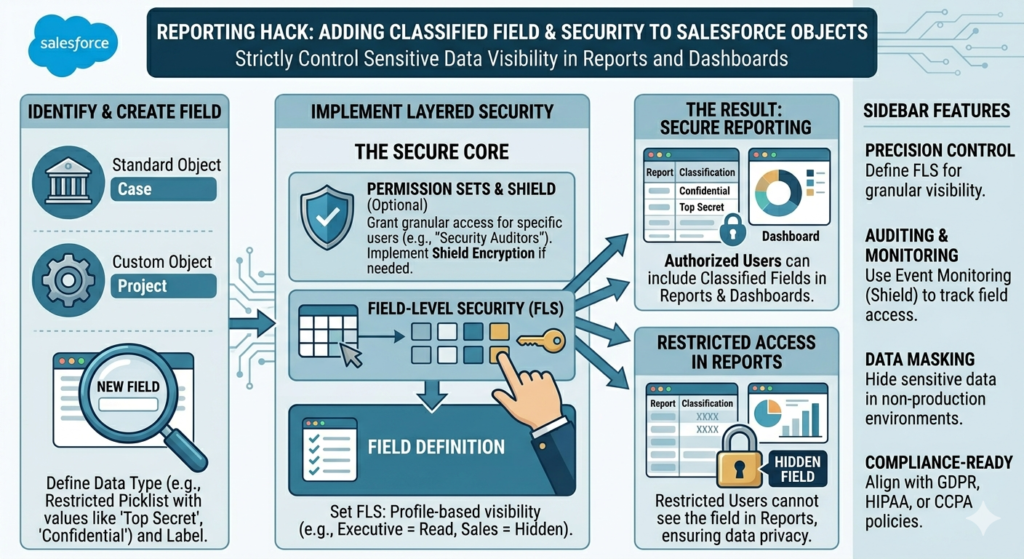
In many Salesforce projects, reports become difficult to manage when too much data is mixed together. Teams often struggle to identify which records are important, sensitive, internal, external, active, or archived. One simple trick that can completely improve reporting is adding a “Classified” field to both Standard and Custom Objects.
This small setup can make reports cleaner, dashboards smarter, and data management easier for every team working inside Salesforce.
In this blog, we will understand what a Classified field is, why it is useful, and how you can implement it step by step in Salesforce.
What is a Classified Field in Salesforce?
A Classified field is a custom field used to categorize records based on business requirements.
It helps users quickly separate records into different groups like:
- Internal
- External
- Confidential
- Public
- High Priority
- Archived
- VIP
- Active
- Inactive
The field acts like a tag or label that improves filtering and reporting.
For example:
| Object | Classification Example |
|---|---|
| Account | Premium Customer |
| Contact | VIP Contact |
| Opportunity | High Revenue Deal |
| Case | Escalated Issue |
| Custom Project Object | Internal Project |
This approach works on both:
- Salesforce Standard Objects
- Salesforce Custom Objects
Why This Reporting Hack is Useful
Most Salesforce orgs contain thousands or even millions of records. Without proper classification, reports become messy and difficult to analyze.
Adding a Classified field helps in multiple ways.
Better Report Filtering
Users can quickly filter reports based on classifications.
Example:
- Show only VIP customers
- Show only confidential cases
- Show only active projects
This reduces manual work.
Cleaner Dashboards
Dashboards become more meaningful because data can be grouped properly.
For example:
- Revenue by Customer Type
- Cases by Severity Classification
- Opportunities by Business Segment
Management gets clearer insights.
Improved Data Visibility
Different departments can focus only on the records relevant to them.
Example:
- HR sees Internal records
- Sales sees External customer records
- Finance sees Premium accounts
This improves productivity.
Easier Data Governance
Organizations handling sensitive data can use classification for compliance and security tracking.
For example:
- Confidential Accounts
- Restricted Opportunities
- Legal Cases
This helps maintain proper data organization.
Where You Can Use Classified Fields
The best part is that this trick works almost everywhere in Salesforce.
Salesforce Standard Objects
You can add the field on objects like:
- Account
- Contact
- Lead
- Opportunity
- Case
- Campaign
- Task
Salesforce Custom Objects
If your company uses custom applications inside Salesforce, you can also use it there.
Examples:
- Employee Management
- Project Tracking
- Recruitment Systems
- Vendor Management
- Asset Tracking
Which Field Type Should You Use?
Usually, these field types work best.
Picklist Field
This is the most common option.
Example values:
- Internal
- External
- Confidential
- Public
Why Picklist?
- Easy to manage
- Consistent values
- Better reporting
Multi-Select Picklist
Use this if one record can belong to multiple categories.
Example:
- VIP + Confidential
But reporting on multi-select fields can sometimes become complicated.
Checkbox
Useful when classification is simple.
Example:
- Sensitive Data = True/False
Step-by-Step: Add Classified Field in Salesforce
Step 1: Open Object Manager
Go to:
Setup → Object Manager
Choose your object.
Example:
- Account
- Opportunity
- Custom Object
Step 2: Open Fields & Relationships
Inside the object:
- Click “Fields & Relationships”
- Click “New”
Step 3: Select Field Type
Choose:
- Picklist
Click Next.
Step 4: Configure the Field
Field Label:
Classified
Possible values:
- Internal
- External
- Confidential
- Public
- VIP
You can customize based on your business needs.
Step 5: Set Field-Level Security
Decide:
- Which profiles can view the field
- Which profiles can edit the field
This is important for sensitive classifications.
Step 6: Add to Page Layout
Add the field to:
- Record pages
- Lightning pages
- Compact layouts if needed
Save the changes.
How to Use the Classified Field in Reports
Once the field is added, reporting becomes much easier.
Example 1: Opportunity Report
Filter:
- Classified = VIP
Result:
Only premium opportunities appear.
Example 2: Case Dashboard
Group cases by:
- Classified field
Now managers can easily track:
- Confidential Cases
- Escalated Cases
- Public Support Issues
Example 3: Account Segmentation
Create reports showing:
- Internal Accounts
- Partner Accounts
- Enterprise Customers
This helps sales teams prioritize work.
Advanced Reporting Ideas
Use Conditional Highlighting
You can highlight:
- VIP records in green
- Confidential records in red
This improves report readability.
Use Dashboard Components
Create charts like:
- Pie Charts
- Funnel Reports
- Classification Trends
This gives leadership better visibility.
Combine with Automation
You can automatically update classifications using:
- Flow
- Apex
- Validation Rules
- Process Automation
Example:
If Opportunity Amount > 1 Crore,
then automatically mark:
Classified = High Value
Best Practices
Keep Picklist Values Limited
Do not create too many categories.
Too many values make reports confusing.
Use Naming Standards
Keep naming consistent.
Good Example:
- Internal
- External
- Confidential
Bad Example:
- Internal Data
- IntData
- Internal_Record
Train Users Properly
Users should understand:
- When to use classifications
- Which value to select
Wrong classifications create reporting problems.
Use Validation Rules if Needed
You can enforce classification for important records.
Example:
- Opportunities above a certain amount must have a classification.
Real Business Example
Imagine a company handling both government and private clients.
Without classification:
- Reports mix all customers together.
With Classified field:
- Government Accounts
- Enterprise Accounts
- SMB Customers
- Internal Test Accounts
Now leadership can create separate dashboards for each business segment.
This improves reporting accuracy and decision-making.
Final Thoughts
Sometimes the simplest Salesforce tricks create the biggest impact.
Adding a Classified field on Standard and Custom Objects is a smart reporting hack that helps organizations:
- organize data properly,
- create cleaner reports,
- build meaningful dashboards,
- and improve overall data visibility.
It requires very little setup effort, but the long-term reporting benefits are huge.
If your Salesforce reports feel cluttered or difficult to manage, this is one improvement worth implementing immediately.