
When you start working with Lightning Web Components (LWC), one of the first things you notice is how clean and structured everything feels. You build a component, attach an HTML template, and control it using JavaScript.
But as your project grows, one template is often not enough.
There are situations where the UI needs to change completely based on conditions. Not just hiding or showing a small section, but rendering an entirely different layout. This is where switching between multiple templates becomes useful.
Why Would You Need Multiple Templates?
In real projects, UI is rarely static.
Think about a few common scenarios:
- Showing a different layout for admin and normal users
- Switching between edit mode and view mode
- Displaying different UI for mobile vs desktop
- Showing a success screen after form submission
You can handle this using conditional rendering inside one HTML file, but after a point, it becomes messy. Too many if:true and if:false blocks make the code hard to read and maintain.
That’s when separating templates makes things cleaner.
How LWC Handles Multiple Templates
By default, every LWC component is linked to one HTML file. But Salesforce gives you a way to override this behavior using a method in your JavaScript file.
Instead of sticking to one template, you can return a different template dynamically.
In simple terms:
- You create multiple HTML files
- Import them into your JS file
- Decide which one to render based on a condition
This gives you full control over how your component behaves.
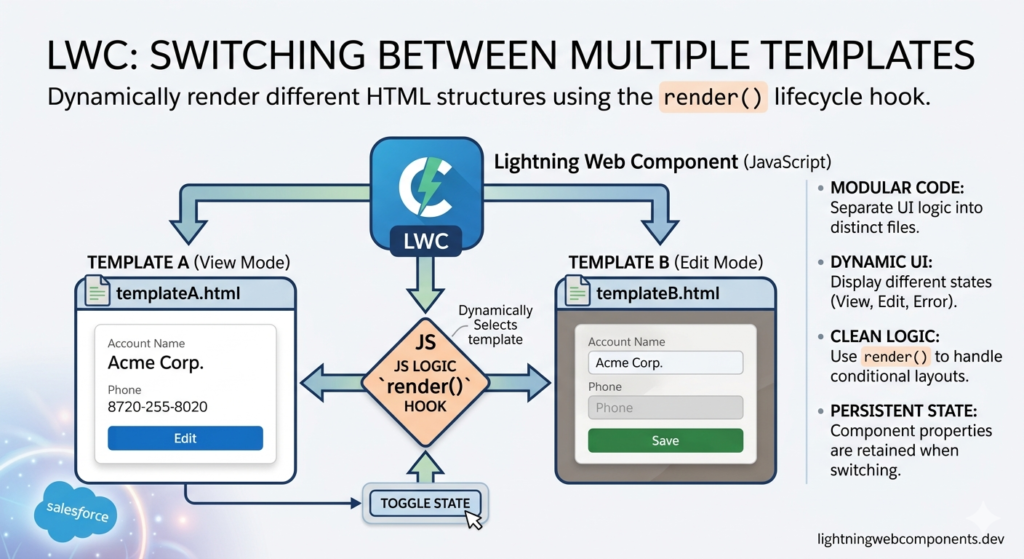
Basic Example: Switching Between Two Templates
Let’s say you want to show two completely different layouts:
- One for “View Mode”
- One for “Edit Mode”
You can create two HTML files:
viewTemplate.htmleditTemplate.html
Then in your JavaScript file, you import both and return the required one.
The decision is usually based on a variable, like isEditMode.
When isEditMode is true → show edit template
When false → show view template
This approach keeps both templates clean and focused on their purpose.
Why This Approach Feels Better in Real Projects
When you keep everything in one HTML file, it works fine in the beginning. But as logic grows, the template becomes difficult to manage.
Switching templates solves that problem.
Each template becomes:
- Easier to read
- Easier to debug
- Easier to update
You don’t have to scroll through hundreds of lines just to find a small section.
It also helps teams collaborate better. One developer can work on one template while another works on a different one.
A Practical Use Case: Form Submission Flow
Let’s take a real example.
You have a form where users enter details. After submission, instead of showing the same form with a message, you want to display a completely different success screen.
Using multiple templates:
- First template → Form UI
- Second template → Success message with confirmation
Once the user submits the form, you switch the template.
This creates a much better user experience compared to just hiding fields and showing a small message.
Another Use Case: Role-Based UI
In many applications, UI changes depending on the user role.
For example:
- Admin sees full controls and extra data
- Normal user sees limited information
Instead of adding multiple conditions inside one template, you can:
- Create separate templates for each role
- Switch based on user profile or permission
This keeps the logic simple and the UI clean.
Things to Keep in Mind
While this feature is powerful, it should be used thoughtfully.
Don’t create multiple templates for very small UI changes. If you just need to show or hide a button, simple conditional rendering is enough.
Use multiple templates only when:
- Layout changes significantly
- Logic becomes too complex in one file
- You want better separation of concerns
Also, make sure your naming is clear. When you have multiple templates, naming them properly helps avoid confusion later.
Common Mistake Developers Make
A common mistake is overusing this feature.
Sometimes developers create multiple templates even when it’s not needed. This adds unnecessary complexity.
The goal is not to use more files — the goal is to make your component easier to understand and maintain.
If one template is enough, stick with it.
Final Thoughts
Switching between multiple templates in LWC is one of those features that feels small at first, but becomes very useful in real projects.
It gives you flexibility to design better UI, organize your code properly, and handle complex scenarios without making things messy.
As your components grow, this approach helps you keep everything structured and readable.
And in the long run, that’s what really matters — not just making things work, but making them easy to maintain.