
Introduction
Modern software development is much more than writing code. Developers need to test their applications, review changes, deploy code, and ensure everything works correctly before releasing it to users. Doing all these tasks manually takes time and increases the chances of mistakes.
This is where GitHub Actions comes in.
GitHub Actions is a powerful automation tool provided by GitHub that helps developers automate software development workflows. Whether you are building a web application, a mobile application, or a Salesforce project, GitHub Actions can automatically test, build, and deploy your code whenever changes are pushed to a GitHub repository.
In this blog, you will learn everything about GitHub Actions in simple language. We will cover its basic concepts, workflow structure, CI/CD implementation, benefits, and several real-world examples to help beginners understand how it works.
What is GitHub?
Before learning GitHub Actions, let’s quickly understand GitHub.
GitHub is a cloud-based platform where developers store their source code using Git (Version Control System).
GitHub helps developers:
- Store code securely
- Track every code change
- Work with multiple developers
- Review code using Pull Requests
- Manage software projects
- Automate development using GitHub Actions
Think of GitHub as an online workspace where your complete software project is stored.
What is GitHub Actions?
GitHub Actions is GitHub’s built-in automation platform.
It automatically performs tasks whenever certain events happen inside your repository.
For example:
- Someone pushes new code
- A Pull Request is created
- A release is published
- A branch is merged
- A scheduled time arrives
Instead of manually running tests or deployments, GitHub Actions performs these tasks automatically.
What is CI/CD?
Before moving further, let’s understand two important terms.
Continuous Integration (CI)
Continuous Integration means developers frequently merge their code into the main repository.
Every time code is pushed:
- Code is compiled
- Unit tests are executed
- Static code analysis runs
- Errors are detected early
This helps developers identify issues immediately.
Continuous Deployment (CD)
Continuous Deployment means automatically deploying tested code to an environment.
The deployment may happen to:
- Development
- QA
- UAT
- Production
The entire process becomes automated.
Why Use GitHub Actions?
Without automation:
Developer writes code
↓
Runs tests manually
↓
Builds project manually
↓
Deploys manually
↓
Checks logs manually
↓
Repeats every day
This process is slow and error-prone.
With GitHub Actions:
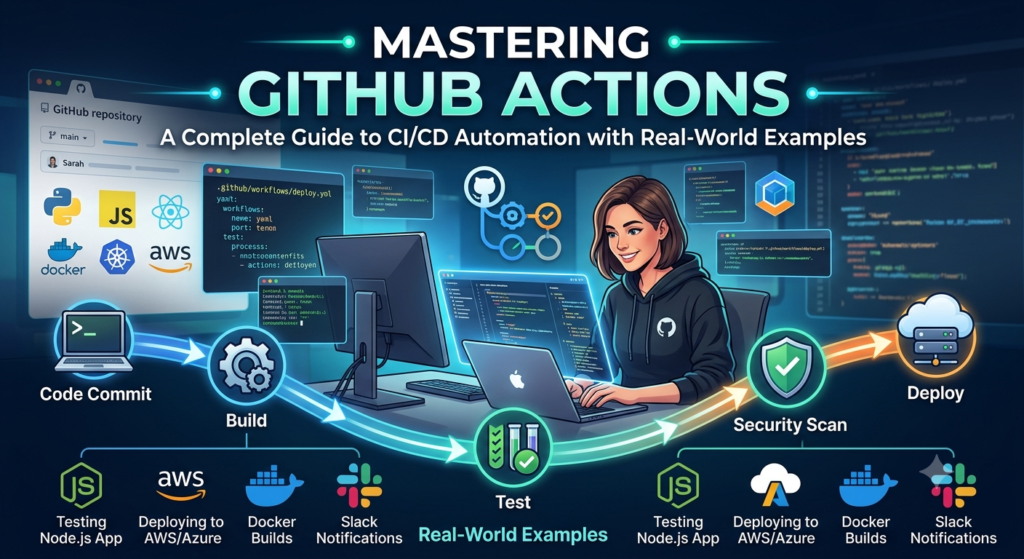
Developer pushes code
↓
GitHub automatically runs tests
↓
Build is created
↓
Quality checks run
↓
Deployment starts
↓
Notification is sent
Everything happens automatically.
Key Components of GitHub Actions
GitHub Actions consists of several important components.
1. Workflow
A Workflow is an automated process.
It contains one or more jobs.
Example:
- Build project
- Run tests
- Deploy application
Workflow files are stored inside:
.github/workflows/
2. Event
An Event tells GitHub when to start a workflow.
Examples:
- push
- pull_request
- release
- workflow_dispatch
- schedule
Example:
on:
  push:
    branches:
      - main
Whenever code is pushed to the main branch, the workflow starts.
3. Job
A Job is a collection of steps executed on a virtual machine.
Example:
Job 1
- Install dependencies
- Build application
Job 2
- Run tests
Job 3
- Deploy application
4. Step
Each Job contains multiple Steps.
Example:
- Checkout code
- Install Node.js
- Install packages
- Run tests
5. Action
Actions are reusable automation components.
GitHub provides thousands of ready-made Actions.
Example:
actions/checkout
This Action downloads your project source code.
6. Runner
A Runner is the machine where workflows execute.
GitHub provides:
- Ubuntu
- Windows
- macOS
Example:
runs-on: ubuntu-latest
Folder Structure
A workflow file is stored inside:
Project

.github
   workflows
      build.yml
GitHub automatically detects this folder.
Creating Your First GitHub Action
Create a file:
.github/workflows/hello.yml
Example:
name: Hello Workflow

on:
  push:

jobs:
  hello:

    runs-on: ubuntu-latest

    steps:

      - name: Print Message
        run: echo "Hello GitHub Actions"
Every push will print:
Hello GitHub Actions
Understanding a Workflow File
A GitHub Action file mainly contains:
Workflow Name

↓

Trigger

↓

Jobs

↓

Steps

↓

Commands
Each section has a specific responsibility.
Building a CI Pipeline
Suppose a developer pushes code.
The CI pipeline performs:
Step 1
Checkout code
↓
Step 2
Install dependencies
↓
Step 3
Compile application
↓
Step 4
Run unit tests
↓
Step 5
Generate reports
↓
Step 6
Mark workflow as Passed or Failed
Developers instantly know whether their code is working.
Real-World Example: Java Application
Whenever code is pushed:
- Checkout repository
- Install Java
- Download Maven packages
- Build application
- Execute tests
- Upload build artifacts
No manual work is required.
Real-World Example: Node.js Application
Workflow performs:
- Install Node.js
- Install npm packages
- Run ESLint
- Execute Jest tests
- Build application
- Deploy
Everything runs automatically.
Real-World Example: Salesforce CI/CD
GitHub Actions is widely used in Salesforce DevOps.
Typical workflow:
Developer creates feature
↓
Pushes code
↓
GitHub Actions starts
↓
SFDX Authentication
↓
Validate Metadata
↓
Run Apex Tests
↓
Deploy to Sandbox
↓
Manual Approval
↓
Deploy to Production
This reduces deployment risks and improves release quality.
Using Secrets
Never store passwords inside workflow files.
Instead, use GitHub Secrets.
Examples:
- Salesforce Username
- Password
- Security Token
- JWT Key
- API Tokens
Secrets remain encrypted and secure.
Branch-Based Deployment
Different branches can deploy to different environments.
Example:
| Branch | Environment |
|---|---|
| feature/* | Developer Sandbox |
| develop | Integration Sandbox |
| qa | QA |
| uat | UAT |
| main | Production |
This creates a safe deployment process.
Scheduled Workflows
GitHub Actions can execute workflows automatically at scheduled times.
Examples:
- Nightly testing
- Daily backup
- Weekly reports
- Monthly cleanup
- Security scans
No manual execution is required.
Manual Workflow Execution
Sometimes developers want manual deployments.
GitHub provides:
workflow_dispatch
This adds a Run Workflow button inside GitHub.
Matrix Builds
Suppose you want to test your application on multiple operating systems.
Instead of creating three workflows, GitHub can execute them simultaneously.
Example:
- Ubuntu
- Windows
- macOS
This saves time.
Reusable Workflows
Many organizations use identical workflows across multiple projects.
Instead of copying the same file repeatedly, reusable workflows allow teams to maintain a single workflow that other repositories can call.
Benefits include:
- Less duplication
- Easier maintenance
- Consistent standards
Advantages of GitHub Actions
GitHub Actions offers many benefits:
- Easy to configure
- Built into GitHub
- Supports CI/CD
- Faster deployments
- Better code quality
- Automatic testing
- Secure secret management
- Supports cloud platforms
- Works with Docker
- Supports Salesforce DevOps
- Large marketplace of reusable Actions
- Saves developer time
Best Practices
Follow these best practices when using GitHub Actions:
- Keep workflows simple and organized.
- Use descriptive names for jobs and steps.
- Store credentials in GitHub Secrets.
- Run automated tests before deployment.
- Protect important branches with pull requests.
- Review workflow logs regularly.
- Reuse workflows whenever possible.
- Use branch-based deployment strategies.
- Monitor workflow execution time.
- Keep third-party Actions updated to the latest stable version.
Common Mistakes Beginners Make
Many beginners face similar issues when starting with GitHub Actions.
Some common mistakes include:
- Committing passwords or API keys to the repository.
- Running deployments without automated tests.
- Ignoring failed workflow notifications.
- Writing very large workflow files instead of separating tasks.
- Not using branch protection rules.
- Skipping code reviews before merging changes.
- Forgetting to update dependencies.
Avoiding these mistakes will help you build more reliable automation pipelines.
Where GitHub Actions is Used
GitHub Actions is widely used in:
- Web development
- Mobile applications
- Salesforce projects
- Java applications
- Python projects
- .NET applications
- DevOps automation
- Cloud deployments
- Infrastructure automation
- API testing
- Security scanning
Conclusion
GitHub Actions has become one of the most popular automation tools because it simplifies software delivery while improving quality and consistency. Instead of performing repetitive tasks manually, developers can automate testing, building, packaging, and deployment directly from their GitHub repositories.
For beginners, learning GitHub Actions is an excellent step toward understanding modern DevOps practices and CI/CD pipelines. As your projects grow, you can expand your workflows to include advanced capabilities such as reusable workflows, matrix builds, package deployments, environment approvals, and cloud integrations.
Whether you are developing web applications, mobile apps, or Salesforce solutions, GitHub Actions can help you deliver software faster, reduce deployment errors, and spend more time building features rather than managing repetitive tasks. Investing time in learning GitHub Actions today will make you a more productive developer and prepare you for real-world software development environments.