
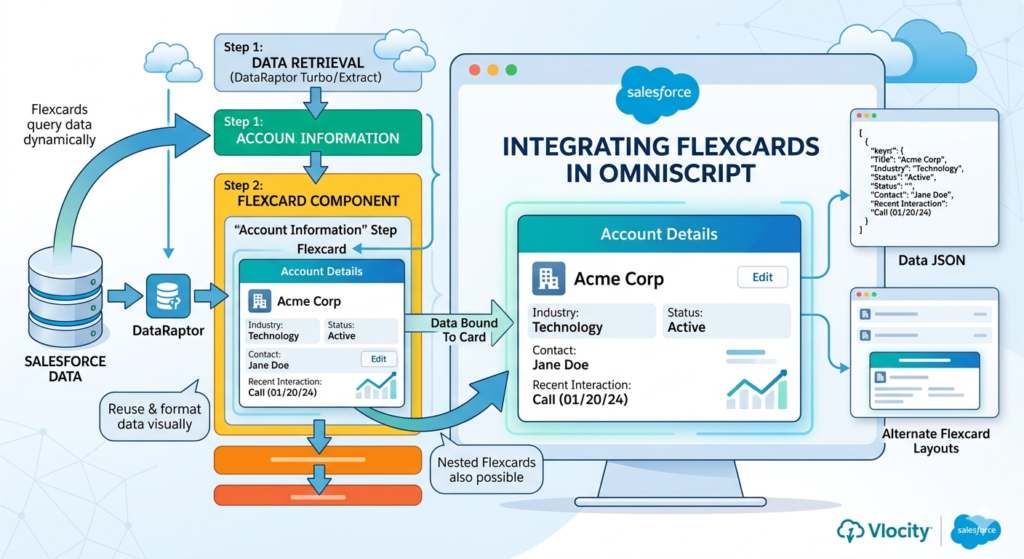
Salesforce OmniStudio is becoming very popular because it helps businesses create powerful digital experiences without writing too much code. Two of the most important components in OmniStudio are FlexCards and OmniScripts.
If you are new to Salesforce or OmniStudio, you might wonder:
“How does a FlexCard show data inside an OmniScript?”
Let’s understand this in a simple way.
What is a FlexCard?
A FlexCard is a lightweight and reusable UI component in OmniStudio that displays information in a clean and interactive format.
Think of a FlexCard as a small information card that can show:
- Customer details
- Account information
- Product records
- Order status
- Case information
- Any Salesforce data
For example, a customer FlexCard can display:
- Customer Name
- Phone Number
- Email Address
- Account Status
All this information is shown in a visually appealing card format.
What is an OmniScript?
An OmniScript is a guided process that helps users complete a task step by step.
For example:
- Customer onboarding
- Insurance claim submission
- Loan application process
- Service request creation
Instead of filling out a long form, users complete the process through multiple easy steps.
Why Use FlexCards Inside OmniScripts?
Sometimes users need to view important information while filling out an OmniScript.
Instead of creating custom Lightning components, we can simply embed a FlexCard inside the OmniScript.
This helps users:
- View customer information instantly
- Check existing records
- Make better decisions
- Reduce data entry errors
- Improve overall user experience
How Does FlexCard Get Data in OmniScript?
The process is quite simple.
Step 1: OmniScript Collects Data
The OmniScript first collects information from the user or receives data from Salesforce.
For example:
{
  "AccountId": "001XXXXXXXXXXXX"
}
This Account Id can be used to fetch account details.
Step 2: FlexCard is Embedded in OmniScript
Inside the OmniScript, a FlexCard element is added.
The FlexCard receives input values from the OmniScript.
For example:
{
  "AccountId": "%AccountId%"
}
The %AccountId% value comes directly from the OmniScript data JSON.
Step 3: FlexCard Calls Data Source
The FlexCard uses a Data Source to retrieve information.
The Data Source can be:
- DataRaptor
- Integration Procedure
- Apex Remote Action
- Salesforce Records
The FlexCard sends the Account Id and receives the account details.
Step 4: Data is Displayed
Once the data is returned, the FlexCard displays it on the screen.
Example:
Customer Information
- Name: John Smith
- Email: john@email.com
- Phone: +1 234 567 890
- Status: Active
The user can now view this information directly inside the OmniScript.
Real-Life Example
Imagine a telecom company where an agent is helping a customer.
The agent opens an OmniScript to create a service request.
At the top of the OmniScript, a Customer FlexCard is displayed showing:
- Customer Name
- Mobile Number
- Plan Details
- Account Status
The agent can quickly verify the information without opening multiple Salesforce records.
This makes the process faster and more efficient.
Benefits of Using FlexCards in OmniScripts
Better User Experience
Users can see important information without leaving the process.
Faster Processing
Agents don’t need to switch between multiple screens.
Reusable Components
One FlexCard can be used across multiple OmniScripts.
Less Development Effort
Most of the configuration can be done using clicks instead of code.
Real-Time Data Display
Data can be fetched dynamically from Salesforce and external systems.
Best Practices
When using FlexCards inside OmniScripts:
- Keep the card simple and easy to read.
- Display only important information.
- Use DataRaptors or Integration Procedures for better performance.
- Avoid loading unnecessary data.
- Make the design user-friendly.
Conclusion
FlexCards and OmniScripts work together to create powerful and interactive Salesforce experiences.
The OmniScript manages the business process, while the FlexCard displays relevant information at the right time. Data is passed from the OmniScript to the FlexCard, which then fetches and displays records using DataRaptors, Integration Procedures, or Salesforce data sources.
For Salesforce beginners, understanding this relationship is an important step toward mastering OmniStudio development. Once you learn how FlexCards receive and display data inside OmniScripts, building user-friendly applications becomes much easier.
Whether you’re creating customer onboarding flows, service requests, or business processes, FlexCards inside OmniScripts can significantly improve the user experience while reducing development effort.