
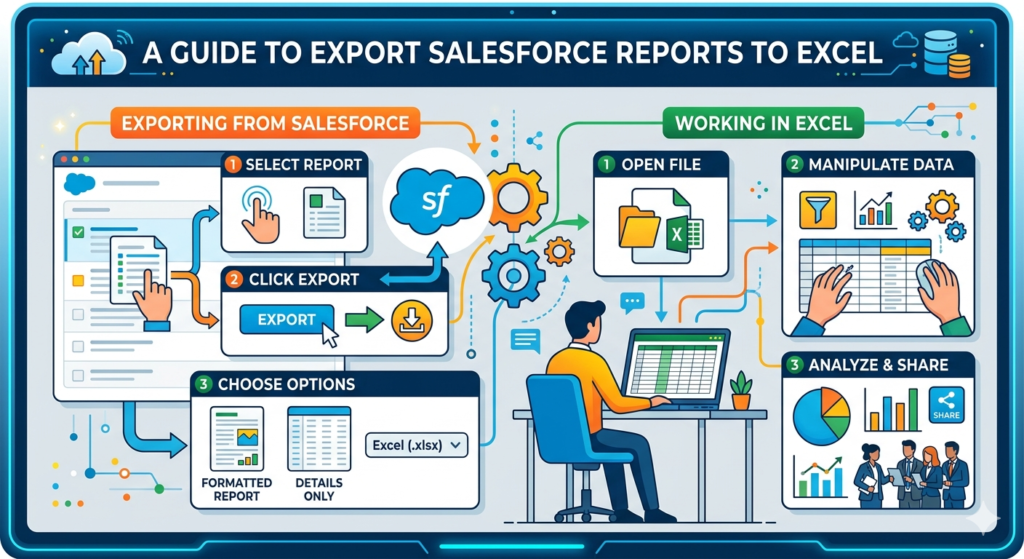
In today’s data-driven world, businesses rely heavily on platforms like Salesforce to store, manage, and analyze data. While Salesforce provides powerful reporting and dashboard capabilities, many professionals still prefer working in Microsoft Excel for deeper analysis, flexibility, and offline access.
If you are someone who wants better control over data, advanced calculations, or easier sharing with non-Salesforce users, exporting Salesforce reports to Excel becomes an essential skill.
In this detailed guide, we will walk through everything you need to know — from basics to advanced techniques, including automation, tools, and common issues.
Why Export Salesforce Reports to Excel?
Before jumping into the “how,” it’s important to understand the “why.” Salesforce dashboards are powerful, but Excel brings a different level of flexibility and control.
1. Advanced Data Analysis
Excel allows:
- Pivot tables
- Complex formulas
- What-if analysis
- Data modeling
These capabilities go beyond standard Salesforce reporting. For example, finance teams can create forecasts or compare multi-year trends easily in Excel.
2. Offline Accessibility
Salesforce requires:
- Internet connection
- Active license
But Excel files:
- Work offline
- Can be shared easily
- Are accessible anytime
This is useful for stakeholders who don’t have Salesforce access.
3. Better Collaboration
Not everyone in an organization uses Salesforce. Excel acts as a common platform across:
- Finance teams
- Marketing teams
- External clients
Sharing an Excel file is faster and more universal than giving Salesforce access.
4. Powerful Data Manipulation
Excel offers tools like:
- VLOOKUP / XLOOKUP
- Macros
- Conditional formatting
- Data cleaning functions
These help in transforming raw Salesforce data into meaningful insights.
Types of Salesforce Report Exports
When exporting reports, you’ll encounter two main formats:
1. Formatted Report
Includes:
- Headers
- Groupings
- Filters
- Subtotals
Best for:
- Presentations
- Readable reports
Export formats:
- .xlsx
- .xls
- .csv
2. Details Only Report
Includes:
- Raw data only
- No formatting
Best for:
- Data analysis
- Excel formulas
- Dashboards
Export format:
- .xlsx
Method 1: Direct Export from Salesforce (Step-by-Step)
This is the easiest and most commonly used method.
Step 1: Open the Report
- Go to Reports Tab in Salesforce
- Select the report you want to export
Step 2: Click Export
- Find the Export button
- Usually located at the top right
- Sometimes inside the three-dot menu
Step 3: Choose Export Type
You will see options:
- Formatted Report
- Details Only
Select based on your requirement.
Step 4: Select File Format
Choose from:
- Excel (.xlsx)
- CSV (.csv)
- Legacy Excel (.xls)
Step 5: Download the File
- Click Export
- File will be downloaded
- Open it in Excel
Now your data is ready for analysis.
Method 2: Export Large Data Using Data Loader
Salesforce Lightning has a limitation:
- Maximum 2000 rows per export
If your data exceeds this, use Data Loader.
What is Data Loader?
Salesforce Data Loader is a client application used to export and import large volumes of data.
Step-by-Step Process
Step 1: Install Data Loader
- Go to Salesforce Setup
- Search for Data Loader
- Download and install
Step 2: Login
- Open Data Loader
- Click Export
- Login with Salesforce credentials
Step 3: Select Object
Choose the object:
- Accounts
- Contacts
- Opportunities
- Custom Objects
Step 4: Write SOQL Query
Example:
SELECT Id, Name, CreatedDate FROM AccountStep 5: Export Data
- Choose file location
- Export as CSV
Step 6: Open in Excel
- Open CSV in Excel
- Convert or format as needed
How to Get Real-Time Salesforce Data in Excel
Manual export works, but it’s not ideal for real-time reporting.
To solve this, you can use connectors.
1. Salesforce Excel Connector Tools
Popular tools include:
- Apsona
- Data Loader.io
- XL-Connector
These tools allow:
- Live data sync
- Scheduled refresh
- Two-way updates
2. Power Query in Excel
Power Query is a built-in feature in Excel (2016+).
It allows:
- Connecting to Salesforce APIs
- Creating reusable queries
- One-click data refresh
This is one of the best native solutions.
3. Salesforce Reports API
For developers, Salesforce Reports API provides:
- Programmatic access to reports
- Automation via scripts
- Integration with Excel using VBA
This is ideal for enterprise-level automation.
Building Dashboards from Excel Data
Once your data is in Excel, you can create dashboards using advanced tools.
Popular Tools:
- Microsoft Power BI
- Tableau
- Google Data Studio
- Klipfolio, Zoho Analytics, Domo
These tools convert Excel files into:
- Interactive dashboards
- Real-time visuals
- Shareable reports
Common Salesforce Export Issues and Solutions
1. Incomplete Data Export
Problem:
- Missing fields or records
Solution:
- Check report filters
- Verify field-level security
- Ensure correct permissions
2. Formatting Issues
Problem:
- Data appears incorrectly in Excel
Solution:
- Use CSV format
- Apply Excel formatting
- Use “Text to Columns” feature
3. Permission Errors
Problem:
- Export option not visible
Solution:
- Contact Salesforce Admin
- Check:
- Profile permissions
- Object access
- Field visibility
4. File Size Limitations
Problem:
- Cannot export more than 2000 rows
Solution:
- Use Data Loader
- Split reports
- Use API tools
Pro Tips for Better Exporting
- Always clean data before exporting
- Use “Details Only” for analysis
- Use CSV for large datasets
- Automate using connectors
- Maintain consistent naming conventions
Conclusion
Exporting Salesforce reports to Excel is not just a basic task — it’s a powerful way to unlock deeper insights, improve collaboration, and enhance decision-making.
While Salesforce provides strong reporting features, Excel gives you:
- Flexibility
- Advanced analysis
- Offline access
By combining both tools effectively, you can build a smarter and more efficient data workflow.
Whether you are a developer, analyst, or business user, mastering this process will significantly improve your productivity and data handling capabilities.