
If you’ve worked on Salesforce for some time, chances are you’ve heard about Salesforce Workbench — or maybe even used it once or twice when things got tricky.
Workbench is one of those tools that quietly sits in the background but becomes super powerful once you understand what it can actually do. From running SOQL queries to deploying metadata, it’s a must-know tool for both admins and developers.
In this guide, I’ll walk you through what Salesforce Workbench is, why it’s useful, and how you can use it in real projects.
What is Salesforce Workbench?
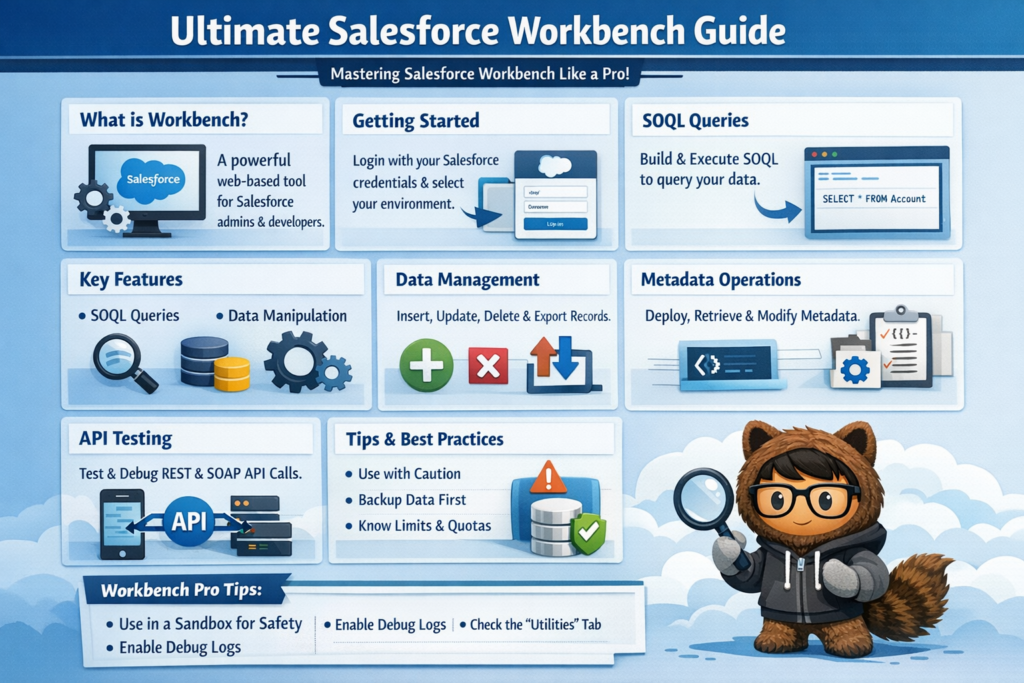
Salesforce Workbench is a web-based utility that lets you directly interact with your Salesforce org using Salesforce APIs.
In simple words, it helps you:
-
View and explore metadata
-
Run SOQL & SOSL queries
-
Insert, update, delete, or export data
-
Test REST APIs
-
Deploy and retrieve metadata
-
Execute Anonymous Apex
Admins love it for quick data tasks.
Developers love it because it gives full control without writing extra code.
How to Login to Salesforce Workbench
Logging into Workbench is pretty straightforward:
-
Open the Salesforce Workbench website
-
Choose the environment (Production / Sandbox)
-
Login using Salesforce credentials
-
For Developer Edition, select Production
-
-
Allow access when prompted
That’s it — you’re in.
Key Features of Salesforce Workbench
Workbench packs a lot of power into a simple UI. Some of the most useful features include:
-
Metadata Explorer
-
Data Management (DML operations)
-
SOQL Query Builder
-
REST API Explorer
-
Metadata Deployment & Retrieval
-
Execute Anonymous Apex
-
Session & Password utilities
Let’s go through the important ones with examples.
Different Ways to Use Salesforce Workbench
Metadata Explorer
1. Standard & Custom Object Metadata
Want to quickly inspect an object without opening Setup?
Using Standard & Custom Object Metadata, you can:
-
View fields
-
Check field types
-
See relationships
-
Review permissions
Just select the object and click Select — all details appear instantly.
2. Metadata Types & Components
You can also browse metadata like:
-
Apex Classes
-
Triggers
-
Lightning Components
-
Flows
-
Validation Rules
This is extremely useful when you need a quick lookup without downloading metadata.
Data Management Capabilities
3. SOQL Using Salesforce Workbench
This is hands down one of the best features of Workbench — especially for non-developers.
Steps:
-
Login to Workbench
-
Go to Queries → SOQL Query
-
Select the SObject
-
Choose required fields
-
Add filters if needed
-
Click Query
Workbench automatically builds the SOQL for you — no syntax headache.
4. Export Data Using Workbench
Need data quickly in CSV?
Workbench allows you to:
-
Export query results as Bulk CSV or XML
-
Pull deleted or archived records
-
Extract large data sets easily
Perfect for audits, reports, or backup needs.
5. Mass Data Update
You can perform bulk operations like:
-
Insert
-
Update
-
Delete
-
Undelete
Process:
-
Go to Data → DML Operations
-
Choose Insert / Update
-
Select the object
-
Upload CSV file
-
Execute
Simple and effective — no Data Loader required.
REST API Explorer
6. Running REST API Calls from Workbench
If you’re testing integrations, this feature is gold.
Steps:
-
Go to Utilities → REST Explorer
-
Select HTTP Method (GET, POST, PATCH, DELETE)
-
Set headers if needed
-
Enter endpoint URL
-
Execute and view response
This helps debug APIs without Postman.
Metadata Deployment & Retrieval
7. Deploy Metadata Using Workbench
Yes — you can deploy metadata using Workbench too.
How it works:
-
Create a ZIP file
-
Add
package.xml -
Include metadata components
-
Upload using Migration → Deploy
It’s not a replacement for CI/CD, but great for quick deployments or fixes.
How to Use Salesforce Workbench Effectively?
If you’re:
-
An admin handling frequent data tasks
-
A developer debugging queries or APIs
-
Someone learning Salesforce internals
Workbench will save you time, clicks, and frustration.
Once you start using it regularly, it becomes one of those tools you wonder how you ever worked without.
Final Thoughts
Salesforce Workbench may look simple, but it’s incredibly powerful when used right.
Whether it’s:
-
Querying data
-
Exploring metadata
-
Testing APIs
-
Performing deployments
Workbench deserves a permanent spot in every Salesforce professional’s toolkit.
If you haven’t explored it deeply yet — now’s the time.