
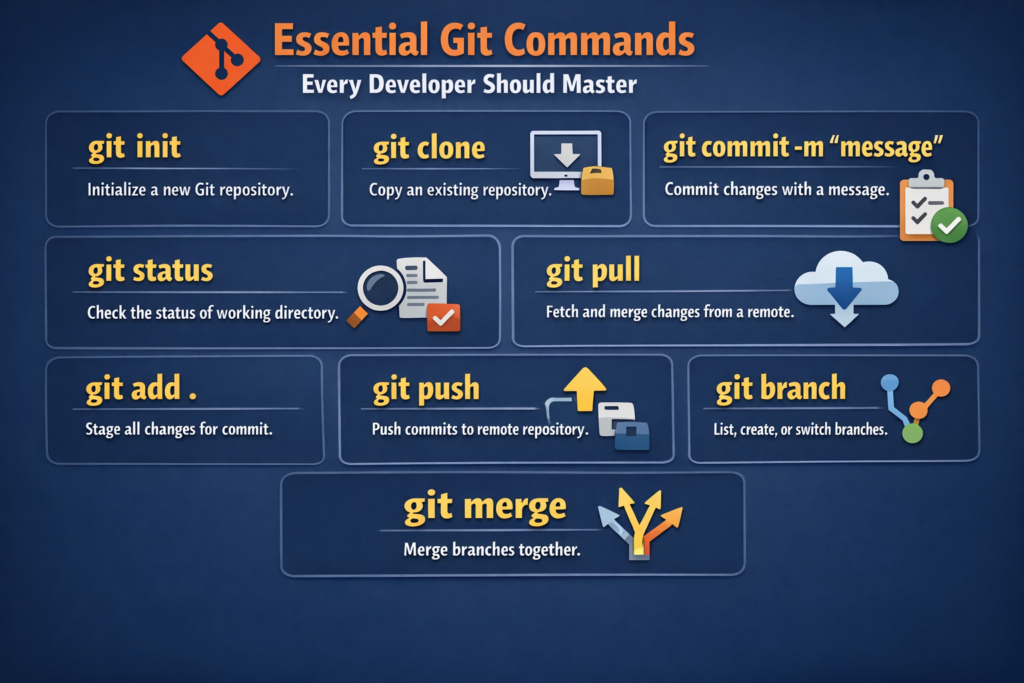
Because clean version control is a superpower
If you’re a developer, Git is not optional — it’s survival.
Whether you’re building Salesforce solutions, web apps, or enterprise systems, Git helps you track changes, collaborate confidently, and recover from mistakes without panic.
In this blog, we’ll walk through practical Git commands every developer actually uses, explained in a simple, hands-on way. No theory overload. No boring definitions. Just real-world Git.
Why Version Control Matters (More Than You Think)
Version control allows you to:
-
Save multiple versions of your code
-
Compare changes over time
-
Roll back mistakes safely
-
Work in parallel with teams without overwriting each other
Git does all of this efficiently — and once you understand the basics, it becomes second nature.
What Exactly Is Git?
Git is a distributed version control system.
Unlike traditional systems that store only changes, Git stores snapshots of your entire project at each stage.
This means:
-
Faster operations
-
Reliable history
-
Full control over your code timeline
You can commit changes, experiment freely, and always return to a stable version if something breaks.
Git vs GitHub (Clearing the Confusion)
Many beginners mix these two — so let’s simplify.
Git
-
Runs on your local machine
-
Tracks code changes
-
Open-source and free
-
Works offline
GitHub
-
Cloud platform that hosts Git repositories
-
Enables team collaboration
-
Provides UI, pull requests, reviews, and CI integrations
-
Owned by Microsoft
👉 Think of Git as the engine, and GitHub as the garage where everyone works together.
Common Git Terms You Should Know
-
Repository (Repo): Your project’s codebase
-
Branch: A separate line of development
-
Commit: A saved snapshot of changes
-
Push: Send local commits to GitHub
-
Pull: Get latest changes from GitHub
-
Merge: Combine branches
-
Tag: A label for a specific release/version
Installing Git on Your System
Before anything else, install Git on your machine.
Download Git from the official site:
👉 https://git-scm.com/download/win
Once installed, you’ll get access to Git Bash, which we’ll use for all commands.
Git Commands Every Developer Should Know 🔥
Let’s break this into three parts:
-
Local setup
-
Working with local repositories
-
Working with remote repositories (GitHub)
1️⃣ Local Environment Setup
Git Configuration (One-Time Setup)
Before committing anything, tell Git who you are.
This information appears in your commit history.
2️⃣ Working with a Local Git Project
Initialize a Repository
Create a folder → right-click → Git Bash Here
This turns your folder into a Git-tracked repository.
Check File Status
Shows:
-
Untracked files
-
Staged files
-
Changes ready to commit
This is one of the most-used Git commands — trust me.
Stage Files for Commit
Add a single file:
Add all .txt files:
Add everything:
Staging means: “This is ready to be committed.”
Remove Files from Staging
If you added something by mistake:
Other modern alternatives:
-
git reset HEAD filename -
git restore --staged filename
Commit Your Changes
Each commit should describe what changed and why.
The .gitignore File (Very Important)
.gitignore tells Git which files it should never track.
Common examples:
-
Logs
-
Environment files
-
Node modules
-
Build folders
Once listed here, Git ignores them permanently.
Create and Manage Branches
Create a branch:
Switch to it:
Branches allow you to work safely without touching production code.
Merge Branches
If you’re on one branch and want changes from another:
This combines work from both branches into one.
3️⃣ Working with Remote Repositories (GitHub)
Once local Git is clear, collaboration begins.
Add a Remote Repository
Check connected remotes:
Push Code to GitHub
This uploads your local commits to GitHub.
Clone a Repository
To copy an existing repo to your system:
Perfect for onboarding new team members.
Fetch vs Pull (Important Difference)
Fetch:
Downloads changes without modifying your local work.
Pull:
Fetches and merges changes immediately.
Additional Git Commands You’ll Love
View Commit History
Compare Changes
Revert a Commit (Safe Undo)
Reset Local Changes
⚠️ Use reset carefully — especially if code is already pushed.
Final Thoughts 💡
Git is not just a tool — it’s a developer’s safety net.
Once these commands become muscle memory:
-
You’ll code faster
-
Collaborate better
-
Fix mistakes confidently
-
Work like a professional developer
In upcoming blogs, we’ll connect Salesforce Org with VS Code using Git and Salesforce CLI, step by step.