
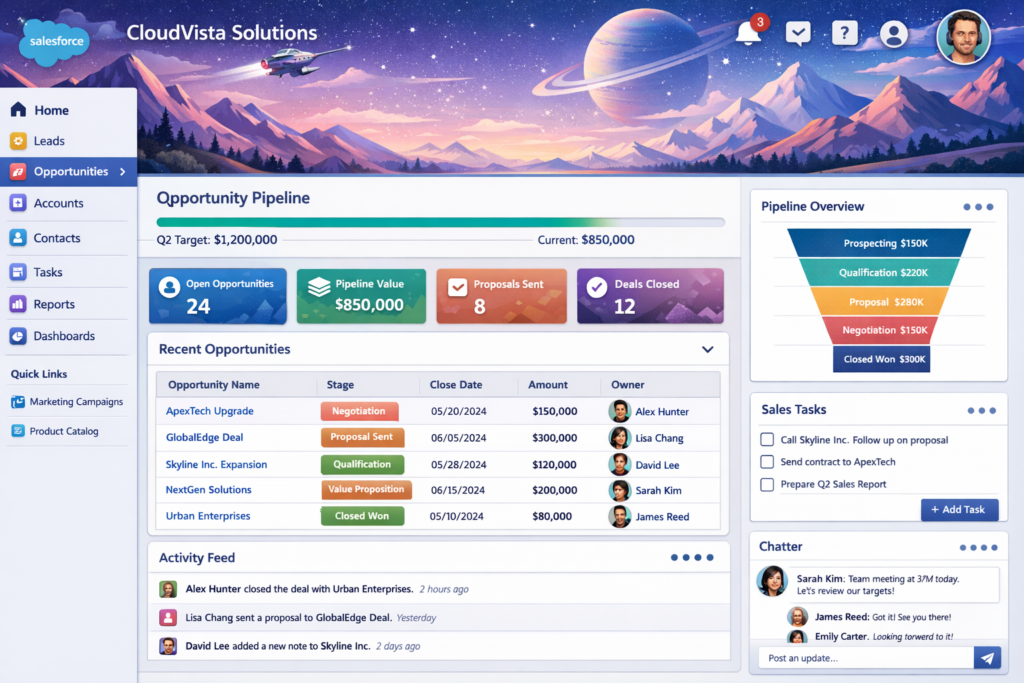
Salesforce is a powerful CRM platform, but its real strength comes from customization. Every business works differently, and Salesforce allows you to customize the User Interface (UI) so users can work faster, smarter, and with fewer errors.
In this blog, we’ll explore how you can customize the Salesforce User Interface in a simple and practical way. Whether you are an admin, developer, or business user, this guide will help you understand how to make Salesforce look and work exactly the way your team needs.
Why Customize the Salesforce User Interface?
A well-customized UI improves:
-
User adoption – Users feel comfortable using the system
-
Productivity – Less time searching, more time selling or servicing
-
Data quality – Cleaner and more accurate data entry
-
User experience – Simple, clean, and role-based screens
Out-of-the-box Salesforce is generic. Customization makes it business-specific.
Key Ways to Customize the Salesforce User Interface
1. Page Layout Customization
Page layouts control how fields, buttons, and related lists appear on a record.
What you can customize:
-
Show or hide fields
-
Make fields required or read-only
-
Reorder sections
-
Control standard and custom buttons
Benefits:
-
Users see only relevant fields
-
Reduced confusion and clutter
-
Better data entry accuracy
Example:
Sales users see pricing fields, while support users see case-related information.
2. Lightning Record Pages
Lightning Record Pages allow you to design modern, dynamic pages using Lightning App Builder.
Features include:
-
Drag-and-drop components
-
Tabs and accordions
-
Highlights panel customization
-
Conditional visibility
Why it’s powerful:
-
No code required
-
Role-based and profile-based UI
-
Fully responsive design
Example:
Show approval status only when a record is in “Pending Approval” stage.
3. Custom Fields and Field Types
Custom fields help you capture business-specific data.
Common field types:
-
Text, Number, Currency
-
Picklist
-
Checkbox
-
Lookup and Master-Detail
UI impact:
-
Structured data input
-
Consistent values using picklists
-
Better reporting and automation
Tip:
Use help text to guide users while entering data.
4. Dynamic Forms (Lightning Experience)
Dynamic Forms allow you to control field visibility directly on the Lightning page instead of page layouts.
Advantages:
-
Show fields based on conditions
-
Profile-based field visibility
-
Cleaner and flexible UI
Example:
Show discount fields only if “Discount Applied” is checked.
5. Navigation Bar Customization
The Salesforce navigation bar defines how users move around the system.
You can customize:
-
Tabs and apps
-
Order of menu items
-
Default landing pages
Result:
-
Faster navigation
-
Fewer clicks
-
Improved user experience
Tip:
Create separate apps for Sales, Service, and Operations teams.
6. Custom Buttons and Actions
Custom actions allow users to perform tasks quickly.
Examples:
-
Create related records
-
Launch flows
-
Open external URLs
-
Trigger automation
Benefits:
-
Saves time
-
Reduces manual steps
-
Improves process consistency
Example:
A “Create Quote” button directly on the Opportunity page.
7. List View Customization
List views help users manage records efficiently.
Customization options:
-
Custom filters
-
Column selection
-
Inline editing
-
Kanban view (for Opportunities)
Why it matters:
-
Users can focus on priority records
-
Faster updates
-
Better pipeline visibility
8. Reports and Dashboards for UI Experience
While not traditional UI elements, dashboards strongly impact user experience.
Best practices:
-
Role-based dashboards
-
Clean and minimal charts
-
Real-time data insights
Example:
Sales managers see pipeline trends, while reps see personal targets.
9. Branding and Theming
Salesforce allows basic branding customization.
What you can brand:
-
App logo
-
Colors
-
Login page (with My Domain)
Impact:
-
Consistent brand identity
-
Professional look and feel
-
Increased trust and adoption
10. Lightning Web Components (Advanced Customization)
For advanced needs, developers can build Lightning Web Components (LWC).
Use cases:
-
Custom UI widgets
-
Complex data views
-
External system integration
Benefits:
-
High performance
-
Reusable components
-
Modern UI experience
Best Practices for Salesforce UI Customization
-
Keep UI simple and clean
-
Customize based on user roles
-
Avoid overloading pages with too many fields
-
Use conditional visibility wherever possible
-
Regularly collect user feedback
-
Test changes before deployment
Final Thoughts
Customizing the Salesforce User Interface is not just about looks—it’s about usability and efficiency. A well-designed UI helps users do their job better, faster, and with confidence.
By using tools like Page Layouts, Lightning Record Pages, Dynamic Forms, and Custom Actions, you can turn Salesforce into a user-friendly platform tailored exactly to your business needs.
If done right, Salesforce UI customization can significantly improve user adoption, data quality, and overall business performance.