
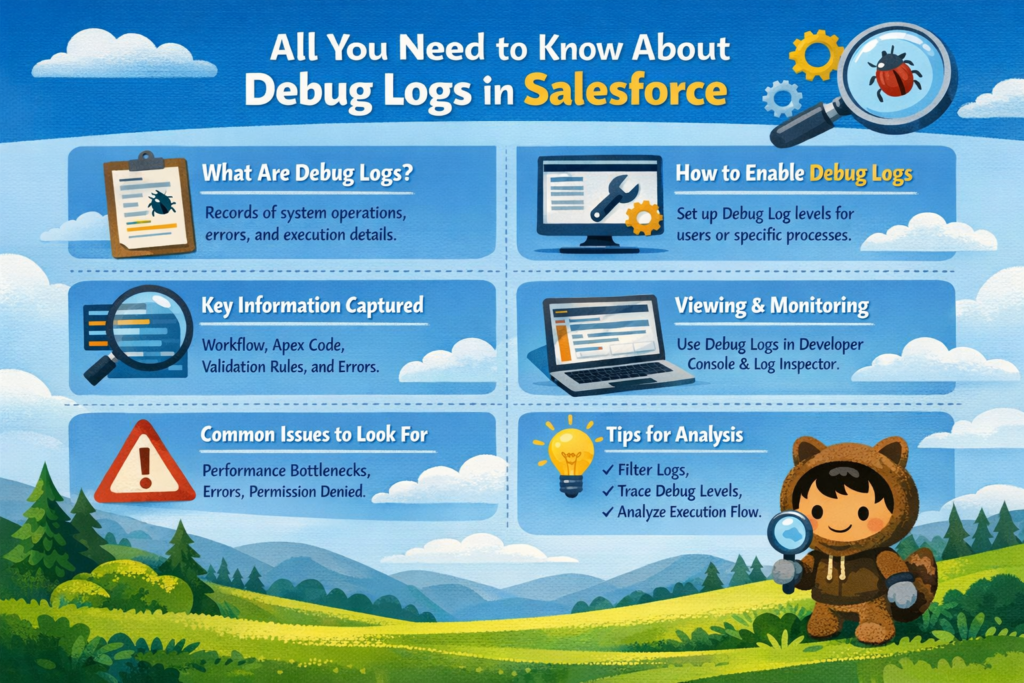
When you start working on Salesforce development, one of the most important tools you will use almost daily is Debug Logs. Whether you are writing Apex code, building flows, or troubleshooting an issue, debug logs help you understand what is actually happening behind the scenes.
In this detailed guide, you will learn everything about debug logs in simple English, step by step, so that you can confidently use them in real projects.
What are Debug Logs in Salesforce
Debug Logs are detailed records of everything that happens in Salesforce when a process runs.
Whenever you:
-
Execute Apex code
-
Run a trigger
-
Submit a flow
-
Perform a user action
Salesforce records all the internal steps in a log file. This log file is called a Debug Log.
Think of it like a CCTV recording for your code. If something goes wrong, you can go back and see exactly what happened.
Why Debug Logs are Important
Debug logs are not just useful, they are essential for every Salesforce developer.
Here’s why:
-
Help in identifying errors in Apex code
-
Show the execution flow step by step
-
Help in debugging triggers, flows, and integrations
-
Provide visibility into governor limits
-
Help in performance analysis
Without debug logs, troubleshooting in Salesforce would be very difficult.
Where to Find Debug Logs in Salesforce
You can access debug logs from Setup.
Steps:
-
Go to Setup
-
Search for Debug Logs in the Quick Find box
-
Click on Debug Logs
-
Here you can:
-
Add a new user trace flag
-
View existing logs
-
Download logs
-
What is a Trace Flag
Before generating logs, you need to enable logging using something called a Trace Flag.
A Trace Flag tells Salesforce:
-
Which user to track
-
What level of detail to capture
-
For how long to capture logs
Example:
If you want to debug your own code, you need to set a trace flag for your user.
Debug Log Levels Explained
Salesforce allows you to control how much detail you want in your logs.
Some common log levels include:
-
NONE – No logging
-
ERROR – Only errors
-
WARN – Warnings and errors
-
INFO – General information
-
DEBUG – Detailed debugging
-
FINE / FINER / FINEST – Very detailed logs
Important Tip:
Always use appropriate log levels. If you set everything to FINEST, your log file will become very large and hard to read.
Structure of a Debug Log
A debug log may look confusing at first, but once you understand the structure, it becomes easier.
Here are the main parts:
1. Execution Start
This shows when the process started.
Example:
-
User initiated action
-
API call started
2. Code Execution
This section shows:
-
Trigger execution
-
Apex class execution
-
Method calls
3. Database Operations
You will see:
-
SOQL queries
-
DML operations (Insert, Update, Delete)
4. Workflow and Flow Execution
This includes:
-
Workflow rules
-
Process Builder
-
Flows
5. Governor Limits
This is one of the most important sections.
It shows:
-
Number of SOQL queries used
-
CPU time
-
Heap size
6. Execution End
This shows whether the execution was successful or failed.
Understanding Key Log Statements
Here are some common terms you will see in logs:
-
EXECUTION_STARTED – Start of process
-
CODE_UNIT_STARTED – Trigger or class started
-
SOQL_EXECUTE_BEGIN – Query started
-
DML_BEGIN – Database operation started
-
EXCEPTION_THROWN – Error occurred
Understanding these helps you quickly identify issues.
Step-by-Step: How to Debug Using Logs
Let’s understand how to use debug logs in a real scenario.
Step 1: Set a Trace Flag
-
Go to Debug Logs
-
Click on “New”
-
Select your user
-
Set log level to DEBUG
Step 2: Perform the Action
-
Run your Apex code
-
Save a record
-
Trigger the process
Step 3: Open the Log
-
Refresh Debug Logs
-
Click on the latest log
Step 4: Analyze the Log
Look for:
-
Errors
-
Exceptions
-
Unexpected behavior
Step 5: Fix the Issue
-
Update your code
-
Test again
-
Repeat if needed
Real-Time Example
Let’s say you have a trigger that updates a field, but it is not working.
Using debug logs:
-
Enable trace flag
-
Update the record
-
Check log
You might find:
-
Trigger is not firing
-
Condition is not met
-
Error in logic
This helps you quickly fix the issue.
Debug Logs for Different Scenarios
Debug logs are useful in many areas:
1. Apex Debugging
Check logic, loops, and conditions.
2. Trigger Debugging
Understand order of execution.
3. Flow Debugging
Track flow steps and decisions.
4. Integration Debugging
Analyze API requests and responses.
Common Issues and Solutions
Issue 1: Log Not Generated
Solution:
-
Check if trace flag is active
-
Ensure correct user is selected
Issue 2: Log Too Large
Solution:
-
Reduce log levels
-
Focus only on required categories
Issue 3: Hard to Read Logs
Solution:
-
Use filters
-
Focus on errors and exceptions
Issue 4: Missing Information
Solution:
-
Increase log level temporarily
Best Practices for Using Debug Logs
To use debug logs effectively, follow these tips:
-
Do not keep trace flags active for long
-
Use DEBUG level only when needed
-
Add System.debug statements in code
-
Focus on errors instead of reading everything
-
Clean up old logs regularly
Pro Tips for Developers
-
Use meaningful debug statements in Apex
-
Combine logs with test classes
-
Use checkpoints for deeper analysis
-
Understand execution order in Salesforce
Final Thoughts
Debug Logs in Salesforce are one of the most powerful tools for developers and admins. They help you understand what is happening behind the scenes and make it easier to fix issues quickly.
If you master debug logs, you will:
-
Debug faster
-
Write better code
-
Handle complex scenarios with confidence
Start using debug logs regularly in your projects, and over time, reading them will become second nature.