
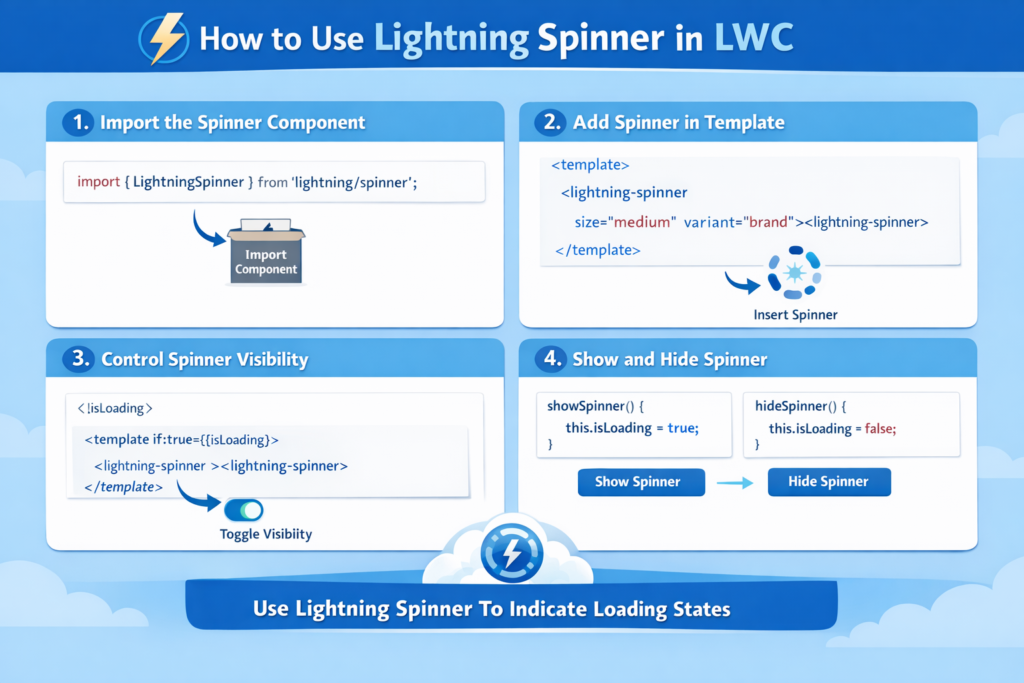
When building applications in Salesforce Lightning Web Components (LWC), user experience is everything. Imagine clicking a button and nothing happens for a few seconds. Confusing, right?
That’s where a Lightning Spinner comes in.
A spinner tells users:
“Hold on, something is happening in the background.”
In this guide, you’ll learn how to use Lightning Spinner in LWC, fetch Account records from Apex, and display them in a Lightning Datatable — all in a clean, professional way.
Let’s build it step by step.
What is a Lightning Spinner in LWC?
A spinner is a loading indicator that appears during:
-
Server-side data fetch (Apex calls)
-
Record save operations
-
File uploads/downloads
-
Long-running integrations
In Salesforce LWC, we use the built-in base component:
It improves:
-
User experience
-
Prevents multiple clicks
-
Reduces confusion
-
Makes your UI look professional
What We Are Building
In this example, we’ll create a simple LWC that:
-
Shows a “Load Accounts” button initially
-
Displays a spinner when clicked
-
Fetches 10 latest Account records from Apex
-
Keeps the spinner visible for a minimum time
-
Displays data inside Lightning Datatable
And yes — it only needs 3 files:
-
Apex Class
-
LWC HTML
-
LWC JavaScript
Step 1: Create Apex Controller
First, create an Apex class called AccountController.
@AuraEnabled(cacheable=true)
public static List<Account> getAccounts() {
return [
SELECT Id, Name, Industry, Phone
FROM Account
ORDER BY CreatedDate DESC
LIMIT 10
];
}
}
Why This Matters
-
@AuraEnabled(cacheable=true)→ Allows LWC to call Apex & enables caching -
ORDER BY CreatedDate DESC→ Fetch latest records first -
LIMIT 10→ Keeps performance optimized
Deploy this class before moving ahead.
Step 2: Design the HTML Template
Now we structure the UI using conditional rendering.
<!– Spinner –>
<template if:true={isLoading}>
<lightning-spinner
alternative-text=“Loading Accounts”
size=“medium”>
</lightning-spinner>
</template>
<!– Content –>
<template if:false={isLoading}>
<!– Show Datatable if data exists –>
<template if:true={accounts.length}>
<lightning-datatable
key-field=“Id”
data={accounts}
columns={columns}>
</lightning-datatable>
</template>
<!– Otherwise show button –>
<template if:false={accounts.length}>
<lightning-button
label=“Load Accounts”
variant=“brand”
onclick={handleLoad}>
</lightning-button>
</template>
</template>
</template>
What’s Happening Here?
Only one of these will show at a time:
-
Spinner
-
Button
-
Datatable
That’s the power of if:true and if:false.
Step 3: JavaScript Controller Logic
Now let’s control the spinner timing and fetch data.
import getAccounts from ‘@salesforce/apex/AccountController.getAccounts’;
export default class AccountTableWithSpinner extends LightningElement {
@track isLoading = false;
@track accounts = [];
columns = [
{ label: ‘Name’, fieldName: ‘Name’ },
{ label: ‘Industry’, fieldName: ‘Industry’ },
{ label: ‘Phone’, fieldName: ‘Phone’ }
];
handleLoad() {
this.isLoading = true;
const spinnerMinTime = 13000;
const startTime = Date.now();
getAccounts()
.then(result => {
this.accounts = result;
})
.catch(error => {
console.error(‘Error fetching accounts’, error);
})
.finally(() => {
const elapsedTime = Date.now() – startTime;
const remainingTime = spinnerMinTime – elapsedTime;
setTimeout(() => {
this.isLoading = false;
}, remainingTime > 0 ? remainingTime : 0);
});
}
}
Why Use Imperative Apex Call Instead of @wire?
Using imperative call:
-
Gives full control over spinner timing
-
Allows custom UI logic
-
Executes only when button is clicked
Perfect for user-triggered actions.
Step 4: Expose Component in Meta File
<LightningComponentBundle xmlns=“http://soap.sforce.com/2006/04/metadata”>
<apiVersion>63.0</apiVersion>
<isExposed>true</isExposed>
<targets>
<target>lightning__AppPage</target>
<target>lightning__RecordPage</target>
<target>lightning__HomePage</target>
</targets>
</LightningComponentBundle>
This makes your component available in:
-
App Page
-
Record Page
-
Home Page
Deploy & Test
-
Deploy Apex + LWC via SFDX
-
Open Lightning App Builder
-
Drag component to page
-
Save & Activate
-
Click Load Accounts
You’ll see:
✔ Button initially
✔ Spinner appears after click
✔ Data loads after 13 seconds
✔ Records displayed in datatable
Clean. Simple. Professional.
Spinner Customization Options
You can control spinner behavior using:
size=“small | medium | large”
variant=“brand | inverse | neutral”
alternative-text=“Loading…”>
</lightning-spinner>
Example:
Advanced Enhancements You Can Add
Want to level up? Try these:
-
Add
ShowToastEventfor error handling -
Add pagination for large datasets
-
Add filter by Industry
-
Create overlay to block background clicks
-
Remove fixed spinner timing in production
Best Practices for Using Lightning Spinner in LWC
-
Don’t keep spinner too long unnecessarily
-
Always provide
alternative-textfor accessibility -
Use overlay for critical operations
-
Avoid blocking UI unless required
Final Thoughts
Using a Lightning Spinner in LWC is a small implementation — but it creates a big impact on user experience.
By combining:
-
Conditional rendering
-
Imperative Apex calls
-
Controlled loading state
You can build responsive, user-friendly Salesforce applications.
Whether you’re loading records, calling APIs, or processing files — a spinner keeps your users informed and confident.
Start implementing this pattern in your projects and you’ll instantly see the difference in UI quality.