
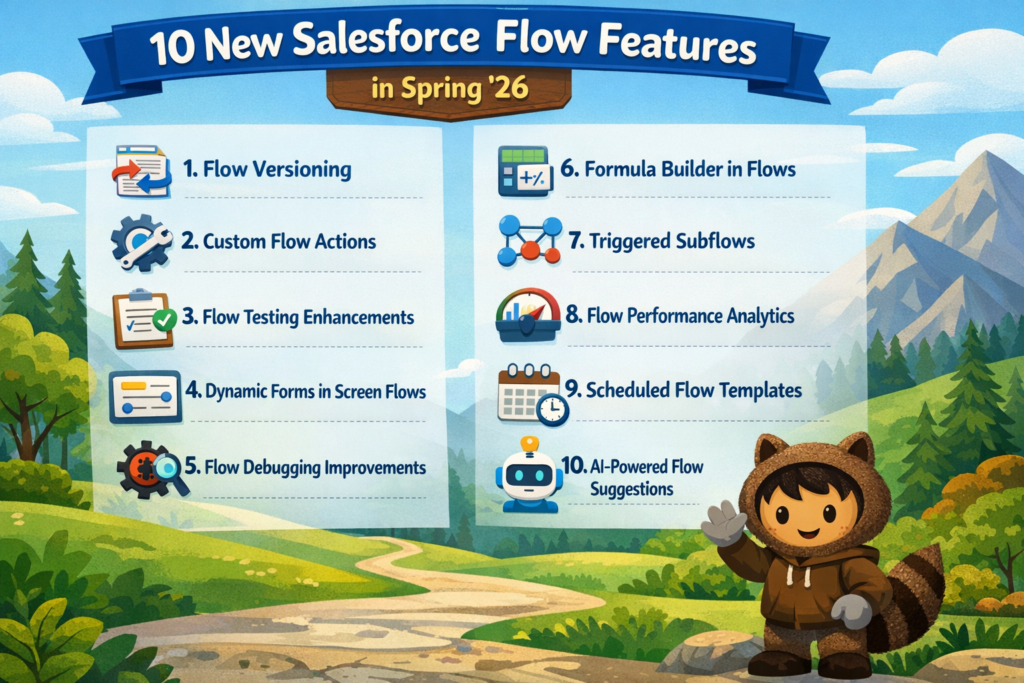
Every time a new Salesforce release comes out, one section that always grabs attention is Salesforce Flow. If you are a Salesforce Admin, Developer, or Consultant, you already know how powerful Flow has become. With every release, Salesforce keeps improving it to reduce manual work and make automation smarter and easier.
The Spring ’26 Release brings some exciting updates that focus on better design, improved debugging, stronger automation, and a smoother user experience. In this blog, we’ll break down the 10 biggest Salesforce Flow features in simple language so you can quickly understand what’s new and how it can help you.
1. Message Component for Screen Flow
Earlier, if you wanted to show alerts or banners inside a Screen Flow, you had to use custom labels or creative workarounds. Now, Salesforce has introduced a built-in Message Component.
You can simply write your message and choose the type:
-
Info
-
Success
-
Warning
-
Error
This makes your Screen Flows more user-friendly and professional. Instead of plain text, users now see clean and clear messages based on conditions in the flow.
Why this matters:
Better communication inside flows improves user experience and reduces confusion.
2. Flow Logging in Automation App with Data 360
Monitoring Flow performance is important, especially in large organizations. With Spring ’26, Salesforce added improved Flow Logging inside the Automation App when used with Data 360.
Now, you get a dedicated Lightning page where you can monitor Flow run metrics in one place.
Why this matters:
Better visibility means faster troubleshooting and improved system performance.
3. Custom Styling for Screen Flows
Design matters. Now, you can customize the look and feel of your Screen Flows using the new Style tab.
You can change:
-
Button colors
-
Borders
-
Background
-
Text colors
This helps match your company’s branding and improves overall UI consistency.
Note: You still cannot use formulas or variables for color values, but this is a strong step forward.
4. Additional Styling for Individual Components
Not only can you style the whole screen, but now you can also style individual components like:
-
Text
-
Number
-
Date
-
Date/Time
This gives you more flexibility when designing advanced screen layouts.
Why this matters:
More control = better user interface design without custom code.
5. Collapsible Decisions and Loops in Flow Canvas
If you have worked with large and complex flows, you know how messy the canvas can look.
Now, you can collapse:
-
Decision elements
-
Loop elements
This reduces clutter and helps you focus on the part of the flow you’re working on.
Why this matters:
Cleaner canvas means better productivity and fewer mistakes.
6. Scrolling Support in Flow Canvas
This feature may sound small, but it’s a big improvement.
You can now scroll directly in the Flow Canvas. Earlier, many users depended on third-party browser extensions.
Why this matters:
Native scrolling improves navigation speed and makes flow building smoother.
7. Kanban Board Component in Screen Flow
Salesforce introduced a Kanban Board component for Screen Flows.
You can now display records in Kanban view inside a flow. Currently, it’s read-only, meaning users cannot move cards between columns.
Why this matters:
It provides a visual way to track records and manage progress inside flows.
This is especially useful in Sales and Service processes.
8. Record-Triggered Flow for Files (Content Document & Version)
Now, you can trigger flows when:
-
A file is uploaded
-
A file is updated
This applies to Content Document and Content Version objects.
Why this matters:
You can automate actions like:
-
Sending notifications when files are uploaded
-
Updating related records
-
Running validations
This opens new automation possibilities for document management.
9. Debug Input Variables Persist Between Runs
Testing flows can be repetitive. Every time you debug, you have to re-enter input values.
Now, Salesforce allows debug values to remain saved between runs during the same editing session.
Why this matters:
Saves time and makes testing complex flows much faster.
10. Vibe-Flow Building (Agentforce Inspired)
This is one of the most exciting updates.
Salesforce is moving toward an AI-assisted, iterative Flow builder experience similar to Agentforce-style development. This means you can use natural language to modify and enhance flows faster.
Why this matters:
AI-assisted flow building reduces manual configuration and speeds up development time.
Automation is becoming smarter and more intuitive.
BONUS: Editable Data Table in Screen Flow
One of the most requested features is finally here.
You can now make Data Table columns editable directly inside Screen Flows — without installing third-party components.
Why this matters:
Users can update multiple records at once directly inside the flow screen.
This is a huge productivity boost.
Final Thoughts on Salesforce Spring ’26 Flow Updates
The Spring ’26 Salesforce Release is focused on:
-
Better UI customization
-
Cleaner flow design
-
Faster debugging
-
Stronger automation triggers
-
AI-powered enhancements
These improvements make Salesforce Flow more powerful than ever. Whether you are a Salesforce Admin, Developer, or Business User, these features will help you build smarter automation with less effort.
Salesforce continues to invest heavily in declarative automation, and it clearly shows in this release.